Retry Unsuccessful Calls
OUTBOUND allows you to configure what should happen if a call placed during an OUTBOUND campaign is unsuccessful (because, for example, the line was busy, the call did not connect, or the call was not answered or was answered by the wrong person). This is managed using retry profiles.
The execution of a retry profile for a contact is driven by the codes that result from calls to that contact.
- Retry completion codes cause the system to schedule retries on the same number.
- Call failure completion codes cause the system to try a contact's other numbers (if present)
The Campaign Provisioning's Enable retries setting defines whether unsuccessful calls should be retried. The retry profile defines what should happen when a call needs to be retried.
You must:
- Create a retry profile
- Assign the profile to the OUTBOUND campaign.
Create a Retry Profile
- From the STUDIO main screen select Outbound > Retry Profiles.
- Click the New Profile
 button.
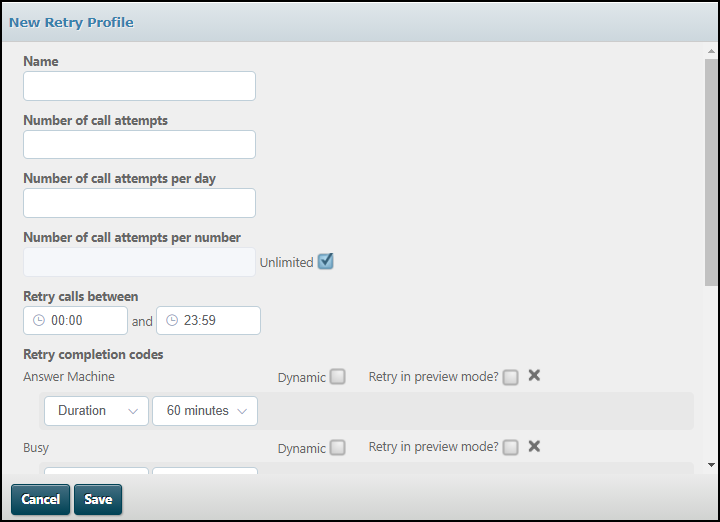
- Name the profile and then complete the fields in the dialog.
- Use the Number of call attempts field to specify the total number of call attempts permitted for a contact during a campaign; the Number of call attempts per day field to specify the number of call attempts permitted in any one day for a contact; and the Number of call attempts per number to limit the number of call attempts to each telephone number (select the Unlimited check box if there is to be no limit).
- Click Save after configuring the Retry Completion Codes, and Call Failure Completion Codes, as described in the following sections.
Retry Completion Codes
Use the Retry completion codes section to configure the list of call completion codes you wish to retry. You can configure for each completion code how to calculate the retry date and time, using the following options:
|
Retry calls between |
Allows you to specify the times of day between which retries will be attempted. |
|
Allows you to specify the amount of time after the call was attempted you wish to attempt a retry. For example if you configure the duration to be 60 minutes, the contact will be retried 1 hour after the previous attempt. If you select a duration that is measured in days, a Session Rotation check box is displayed.
If you select this check box, the retry will be attempted in the session following the one in which the previous attempt was made; subsequent retries will use the next session in turn, starting at the first session of the day when the last session of the day has been reached. If you leave it blank, retries will always be made in the same session as the initial call. |
|
|
Sessions |
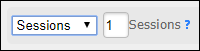
Allows you to specify the number of sessions to skip (including the current one) before attempting to retry the contact. A session is a morning period (8am - 1pm) or an afternoon period (1pm - 6pm).
Entering a value of '2' sessions, for example, means that, for a call attempt at 3pm, the retry will be scheduled for the afternoon of the following day. |
|
Allows you to specify a specific date and time you wish to attempt the retry.
Use the fields provided to set the date and time. The Retry past dates check box controls what happens if the date and time is in the past at the point when the retry time is calculated for a record. If you select this check box, the record will be retried immediately; if you leave it blank, the record will not be retried. |


When you select the Dynamic check box, a set of fields appear that allow you add more criteria against a completion code in order to decide when retries are scheduled. You can add multiple sets of these criteria against a completion code and configure the priority order in which they are checked. Criteria include either the length of time between the contact being imported into storm and the last call attempt (Age), or the number of attempts already made to place the call (Processing Attempts).
Note: this functionality is optional.
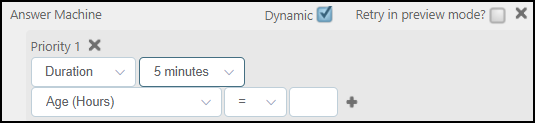
Click the Priority 1  button to open a second set of fields to enter the criteria to be tried next.
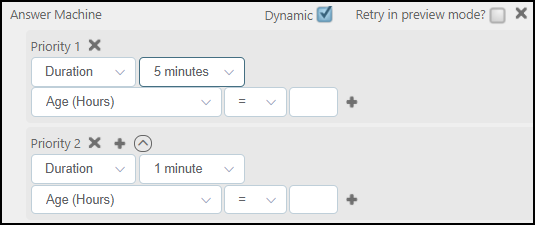
Repeat the process to define as many sets of criteria as required. Use the  button to organise the sets of criteria into the order in which they are to be tried.
Repeat the process for each completion code for which you wish to set priority criteria.
At run-time, the system checks all priority 1 criteria for a match; then, if none is found, priority 2, and so on. If no match is found, then no retry is attempted and the status 'Criteria not met' is recorded in the CDR.
If you select the Retry in preview mode check box, the retried call will be handled using a preview pacing profile; the agent will be shown information on the contact, and can place the call when they are ready. Where the call was originally handled using a preview pacing profile, the rules set up for that preview pacing profile will be used when the call is retried. Otherwise, the call will be handled using a preview pacing profile defined for your organisation by Content Guru.
Note: by default, the preview pacing profile defined by Content Guru will not enable automatic acceptance or rejection of the call, and the option available to the agent to extend the preview time will also be disabled. See your Content Guru support representative if you wish to make these features available.
The Retry in preview mode option allows you to manage abandoned calls (where a call has been answered by the contact, but no agent was available to service the call) by ensuring that the call is retried as quickly as possible, with an agent reserved to service the call. When the abandoned call is retried, the information displayed to the agent in DTA shows that the call was abandoned, allowing them to deal with the contact appropriately. To ensure that a contact is retried as quickly as possible after an abandoned call, set up a retry completion code as shown in the following illustration.

Note: if you set up an 'Abandoned' retry completion code as shown above and do not select the Retry in preview mode check box, the duration must be greater than 72 hours in order to conform to Ofcom regulations.
If you select the Immediately dial the next available number on call failure check box, then, if a call attempt fails, the next number stored for the contact is dialled immediately.
If preview mode is being used, the call record is retained on the agent's screen in DTA while the subsequent attempts are being made. Subsequent attempts are made only when the following conditions are met:
- An attempt to the telephone number fails to connect
- The attempt fails with an outcome that is in the list of call failure causes in the retry profile.
Once a call connects and the agent submits a completion code that is in the list of call failure causes in the retry profile, the call record is removed from the agent's screen and then processed according to the retry profile settings (which may involve subsequent calls being handled by a different agent).
Example Retry Profile - Dynamic Settings
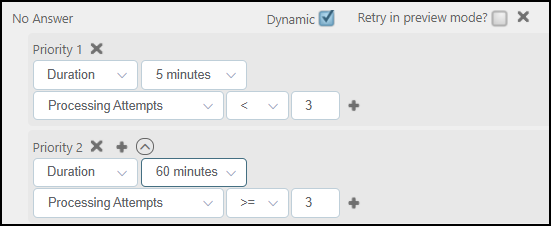
Setting the values shown in the illustration below against the 'No Answer' system completion code has the following effect:
The first return of 'No Answer' will schedule a retry in 5 minutes
The second return of 'No Answer' will also schedule a retry in 5 minutes; and the third and further returns of 'No Answer' will each schedule retries in 60 minutes.
Similarly, selecting an 'age' option allows you to pace the retries against an outcome based on the time between the creation of the record and the last attempted call against that record. Selecting the options below, for example, ensures that older records (at least 5 hours old) are retried less frequently (90 minutes) than records that are less than five hours old.
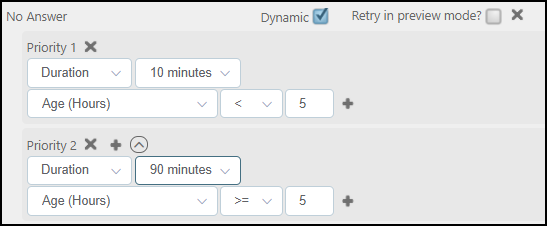
You can add multiple processing attempts and age rules per priority.
Call Failure Completion Codes
Use the Call Failure completion codes section to trigger immediate retries on a contact's next number whenever a listed completion codes is recorded against a number. The section is ignored if the contact has only one number or when all of the contact's numbers have been tried once.
Retries stop when no listed completion code from either list is recorded against a call attempt.
Use  to add custom completion codes that agents can select from DTA.
Note: completion codes can be used to determine what should happen when a call does not connect. If a call connects (including to an answering machine), it will be routed to a queue and then to an agent. If a call does not connect, the storm platform uses the Q.850 clearing cause codes to identify the reason for the failure.
Example Retry Profile - Non Dynamic Settings
The following example retry profile configuration uses non-dynamic settings.
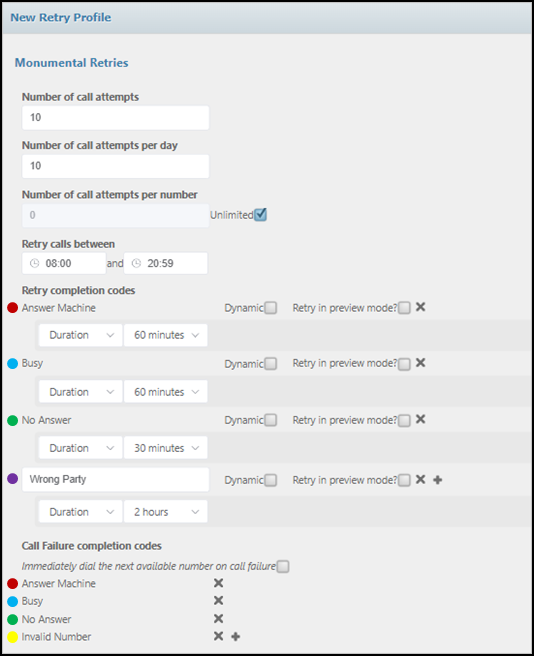
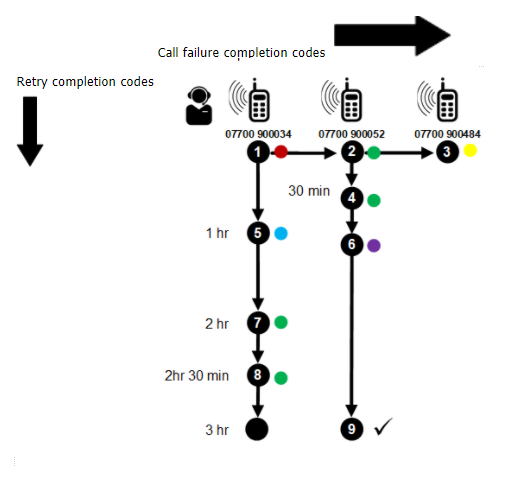
A retry profile that is configured with the values shown in the illustration above could result in the retries shown in the diagram below for a particular contact. In this example, the contact has three phones. The first call to the contact (on 07700 900034 – call 1) is met by an answer machine response.
The presence of the 'Answer Machine' completion code in the 'Call Failure completion codes' section of the New Profile Retry dialog causes the system to call the contact's second number (07700 900052), next (call 2).
However, the 'Answer Machine' completion code is also configured in the Retry completion codes section of the New Retry Profile dialog. This causes a call to be scheduled on the same number 60 minutes later (call 5).
Meanwhile, call 2 on 07700 900052 results in a 'No Answer' completion code, which is configured in both completion codes sections, causing call 3 to be made on the contact's third number (07700900484), as well as a call to be scheduled on the same number (07700 900052) 30 minutes later (call 4).
The call failure completion code configuration no longer applies after call 3 because there are no more numbers to try for the contact. However, the retry completion codes continue to be applied on the first two numbers until a call succeeds (call 9, in the example).
Assign a Retry Profile to a Campaign
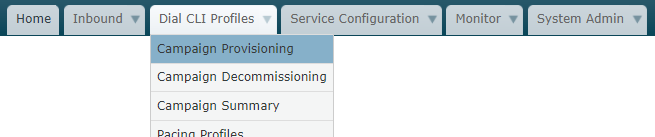
From the third tab, select Campaign Provisioning.
Select the campaign (indicated by the 'Service'). Select the Enable Retries check box and then the retry profile.
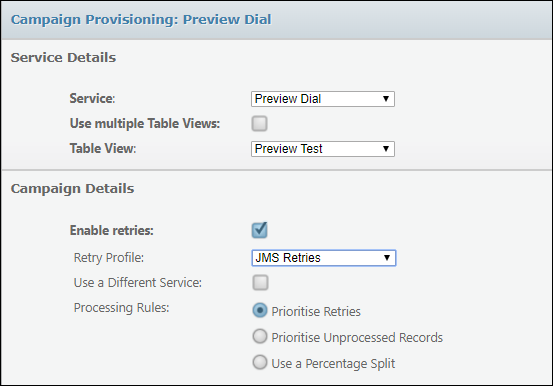
Select the Use a different service option if you want all retries to pass through a FLOW script other than the provisioned script when a retry completion code in the profile is recorded. For example, the script may send an email to the contact and then set the completion code to a value not listed in the profile to prevent further retries against a contact.
Select a processing rule option that determines the prioritisation of retries with unprocessed campaign records.
Click Save.